> For the complete documentation index, see [llms.txt](https://docs.camflite.com/llms.txt). Markdown versions of documentation pages are available by appending `.md` to page URLs; this page is available as [Markdown](https://docs.camflite.com/crd1/crd1-intro/getting-started.md).
# Getting Started
## 1. Unboxing the CRD1
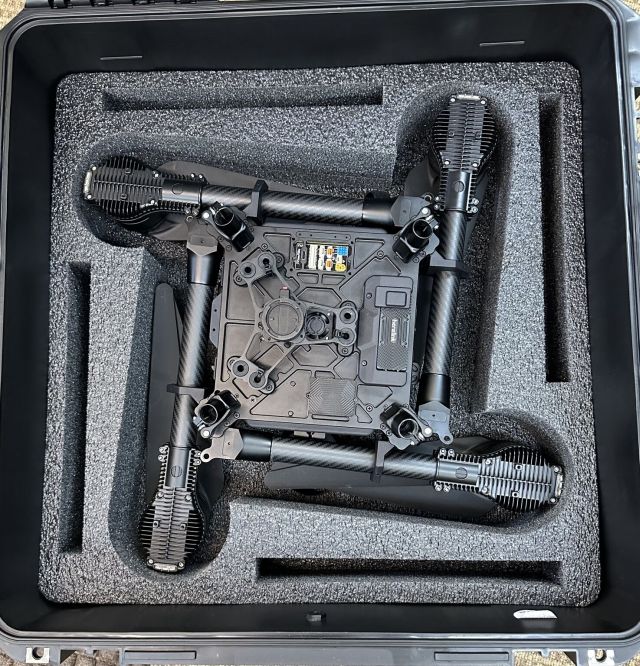
* [ ] Open the box and see the upper tray with the gear legs, transmitter, and controller.
* [ ] Remove the controller from the case, peel off the sticker from the controller screen, and press the power button. Once powered on, the AMC app opens.
* [ ] Install the gear legs, locking them before pulling out the CRD1.
* [ ] Pull out the CRD1 and place it on a flat surface
* [ ] To unlock the mechanism, pull the knob and swing the arms in place, **making sure the pin slides into the lower bushing as you twist the knob**. The knob might be tight at first, but it will loosen over time.
* [ ] Place (2) 6s Lipo batteries on top of the CRD1 and strap them in place. When ready, plug the batteries into their two receptacles on the back of the aircraft.
* [ ] Make sure all RF antennas are screwed on.
* [ ] Install RTK GPS Mast
{% hint style="danger" %}
It's crucial to push down the boom lock all the way to ensure the booms don't open during the flight, which could lead to a crash. So, make sure to double-check the lock before flying!
{% endhint %}
## 2. Connecting your CRD1 to the Internet
Connecting the CRD1 to the internet allows you to connect to the Auterion Suite, load maps, download software updates, and communicate with your drone.
Connect your aircraft to a wifi network to ensure your drone is always connected to the Suite after a day of flying. To connect your CRD1 to the wifi:
1. Open AMC Herelink or PC. If using a PC, connect to CRD1 with a USB-C cable.
2. Power CRD1.
3. Tap the icon in the top-left of AMC. Navigate to Vehicle Setup > WiFi
4. Select Station mode, which allows CRD1 to connect to another wifi network.
5. Enter the login credentials for your wifi access point.
6. Remote ID will need to have the WIFI disabled.